Logging in to Live Platform with IAM-Based Authentication
When Identity and Access Management (IAM) functionality is used by Live Platform for user management, you can log in to Live Platform's Operation Center Portal using your local account credentials or through your Microsoft 365 account. Typically, login also includes an extra layer of security using Multi-Factor Authentication (MFA), where you need to provide a verification code (sent to your Authenticator app or email address). To enable MFA per user (depending on your user role), see Enabling MFA for User Login.
|
●
|
The Live platform uses pop-up windows during sign-in. If your web browser blocks pop-ups, please allow them for this site before continuing. |
|
●
|
A Redirect URL must be configured in the App registration for the Multitenant. |
|
●
|
Make sure that the organization's firewall allows the below URLs. Service Providers and Channels should inform their end customers. |
|
✔
|
https://iam.audiocodesaas.com |
|
✔
|
https://acservicesiam.b2clogin.com/tfp/acservicesiam.onmicrosoft.com |
|
✔
|
https://acservicesiamfiles.blob.core.windows.net |
|
●
|
For customers with their own White-label App registration, additional configuration is required, contact AudioCodes Services Portal. |
|
1.
|
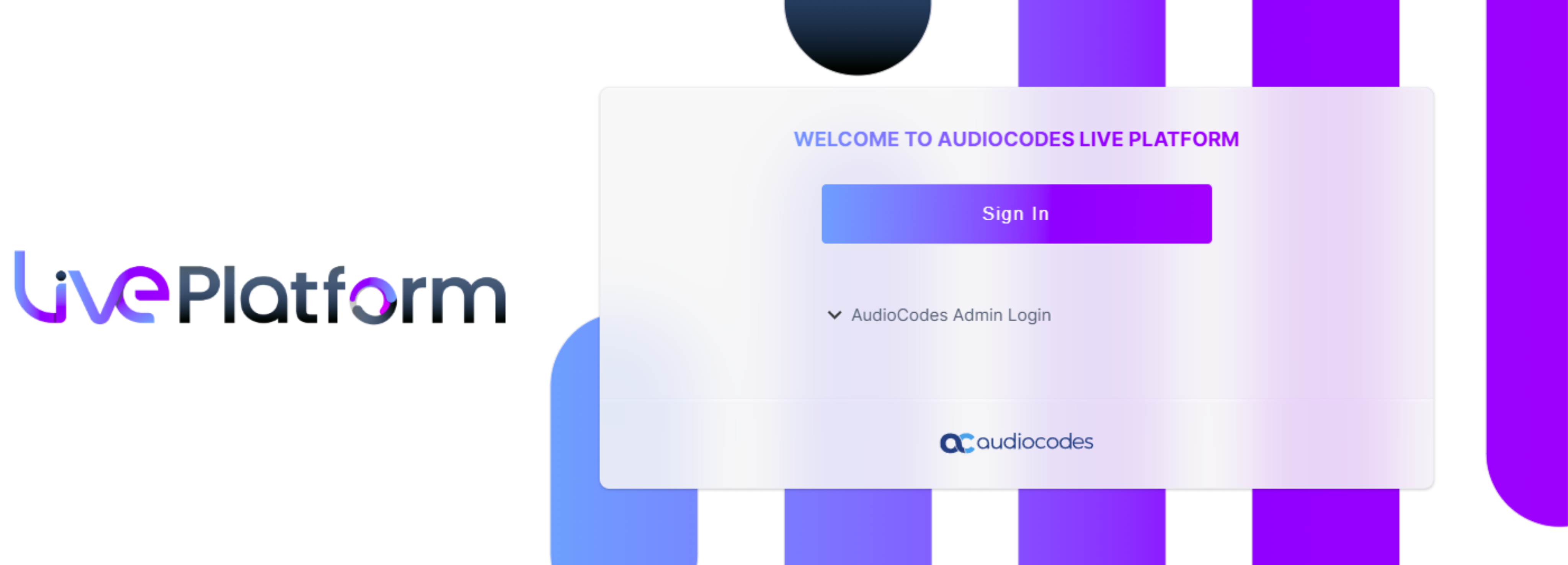
In your web browser, go to the Live Platform URL. |
|
2.
|
Click Sign In; IAM token-based authentication with Live Platform starts: |
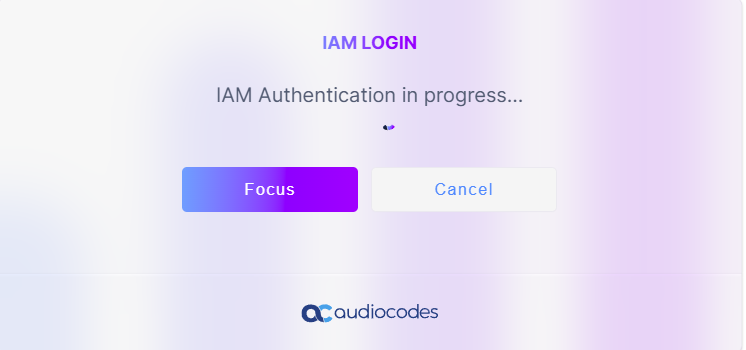
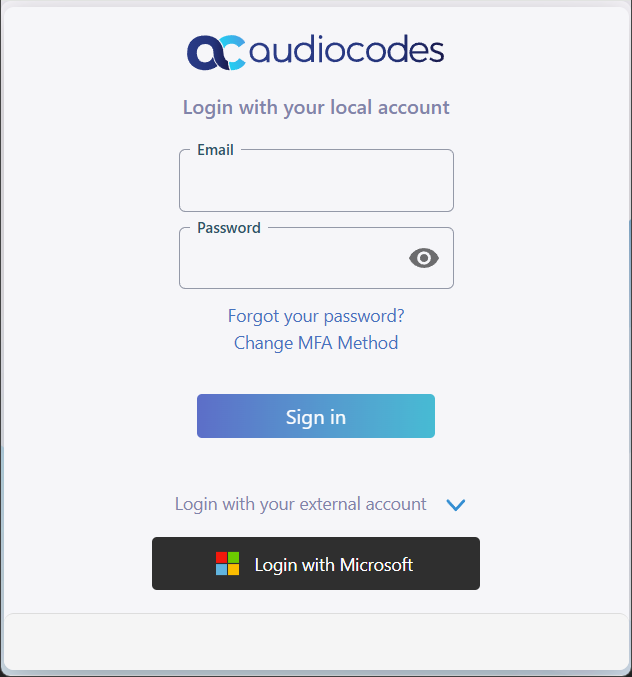
When IAM authentication completes (may take several seconds), the following dialog box appears:
|
3.
|
To sign in with an external user account (i.e., Microsoft):
|
|
a.
|
Click Login with Microsoft. |
|
b.
|
Enter your Microsoft email address, and then click Next. |
|
c.
|
Enter your password, and then click Sign In.
|
|
d.
|
Complete any verification steps (MFA), if required. |
|
4.
|
To sign in with a local user account:
|
|
a.
|
Under Login with your local account, In the 'Email' field, enter your email address and in the 'Password' field, enter your password. |
|
b.
|
Click Sign in; if MFA is not enabled, skip to Step 5; otherwise, continue with the next step. |
|
c.
|
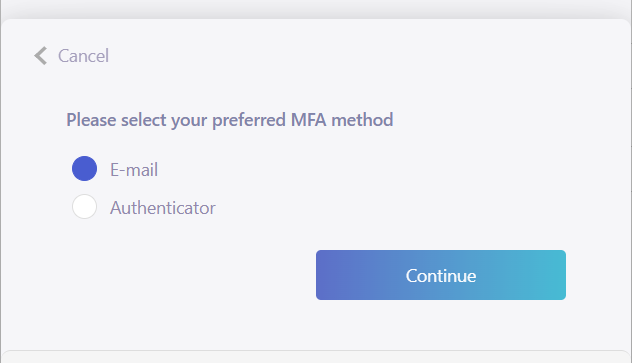
If this is your first sign-in after being enabled for MFA, you're prompted to choose the MFA method (by email or authenticator app): |
|
d.
|
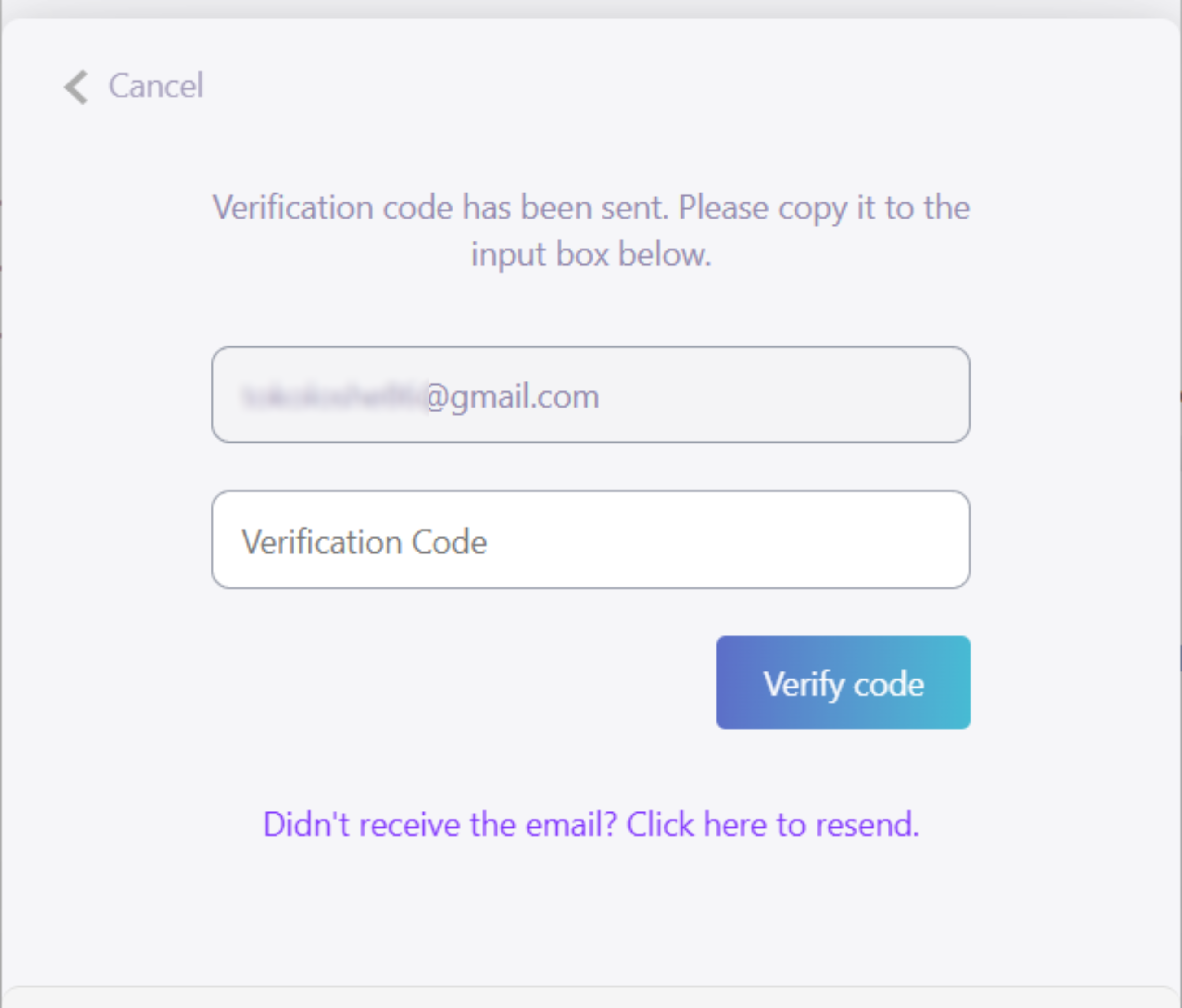
If you select the E-mail option, a verification email is sent to you with a verification code and the following is displayed: |
|
i.
|
Copy the verification code from the email and paste it into the 'Verification Code' field. |
|
ii.
|
Click Verify code; if verification succeeds, the Choose Permission Level dialog box appears (continue with Step 7). |
|
e.
|
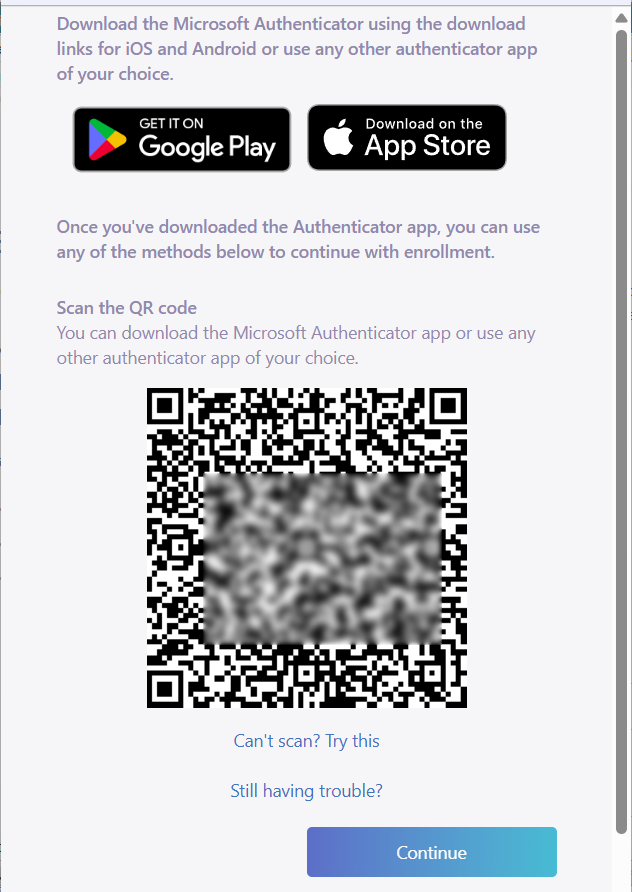
If you select the Authenticator option, a pop-up with a QR code is displayed: |
|
i.
|
Scan the QR code; the authenticator app displays a verification code. |
|
ii.
|
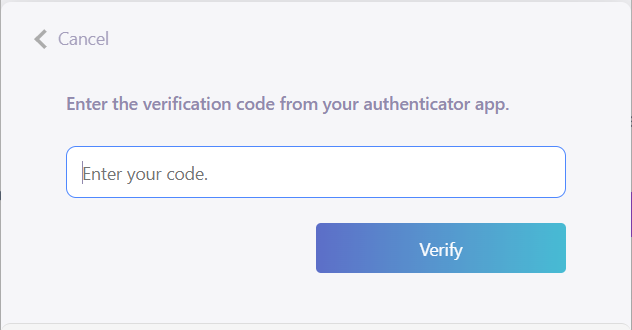
Click Continue; the following pop-up is displayed: |
|
iii.
|
In the field, enter the verification code from your authenticator app, and then click Verify; if verification succeeds, the Choose Permission Level dialog box appears (continue with Step 8). |
|
5.
|
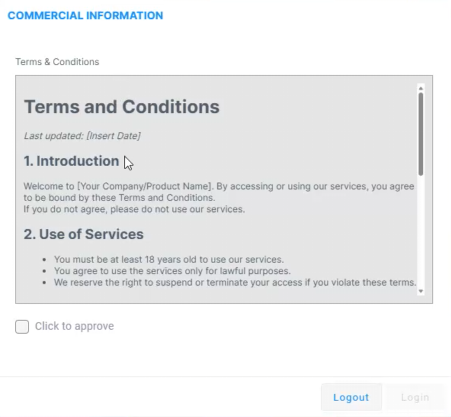
If Live Platform uses a Commercial Information form for services and the Terms and Conditions (T&C) have been updated, the following Commercial Information dialog box appears if you are the first Channel user to log in after the T&C update: |
|
6.
|
Read the Terms and Conditions (T&Cs), and then select the 'Click to approve' check box to agree. |